
Permission Groups allow you to control the access levels of users. You can group multiple permissions into a permission group and assign it to user groups.
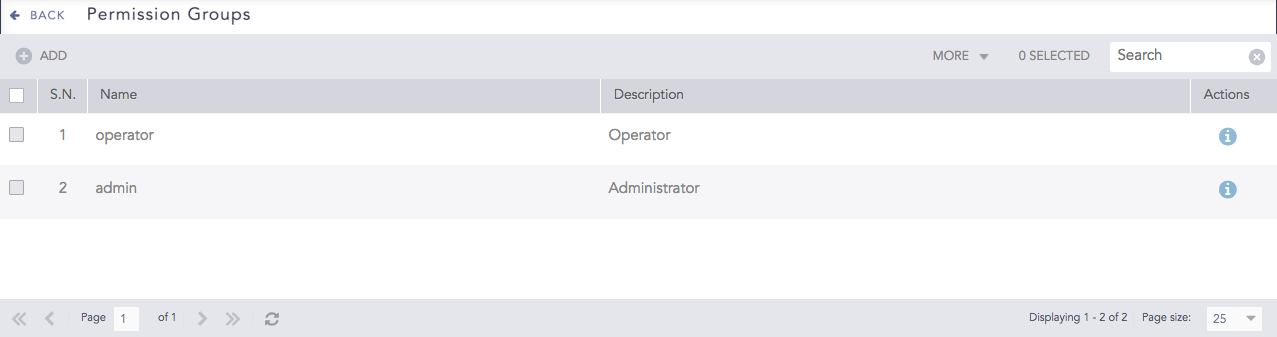
Permission Groups
There are two permission groups by default.
The admin permission group has the read, create, and delete permissions.
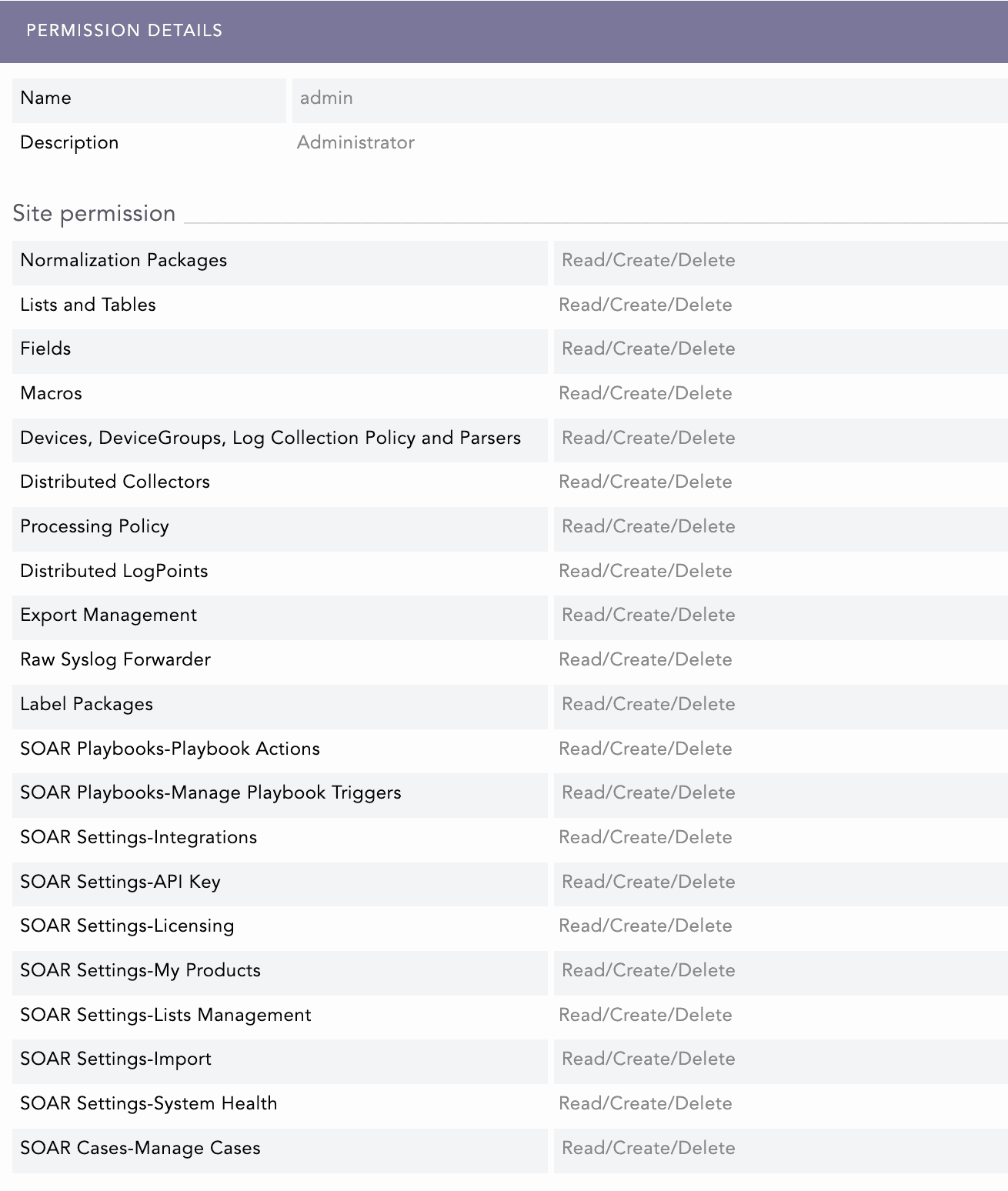
Admin Permission Details
The operator permission group only has the read permission.
Note
Read and Create permissions are enabled by default when you select Delete.
Read permission is enabled by default when you select Create.
You cannot edit or delete the default permission groups.
You have to enable SOAR first before you can grant SOAR-specific permissions.
SOAR Playbooks Permission Details
SOAR Playbooks |
Read |
Create |
Delete |
|---|---|---|---|
Playbook Actions |
|
|
Delete playbook. |
Manage Playbook Triggers |
List triggers. |
Add/Edit triggers. |
Delete triggers. |
SOAR Settings Permission Details
SOAR Settings |
Read |
Create |
Delete |
|---|---|---|---|
Integrations |
|
|
Delete Vendors, Products and Actions. |
API Key |
View API Key. |
Generate API Key. |
N/A. |
Licensing |
View License |
Upload License. |
N/A. |
My Products |
Export/View Products. |
Add/Edit Products. |
Delete Products. |
Lists Management |
View List. |
Add/Edit List. |
Delete List. |
Import |
N/A. |
Upload imported Settings. |
N/A. |
System Health |
View System Health. |
N/A. |
N/A. |
SOAR Cases Permission Details
SOAR Cases |
Read |
Create |
Delete |
|---|---|---|---|
Manage Cases |
Export/View Cases. |
|
Delete Label and Comment. |
Go to Settings >> User Accounts from the navigation bar and click Permission Groups.
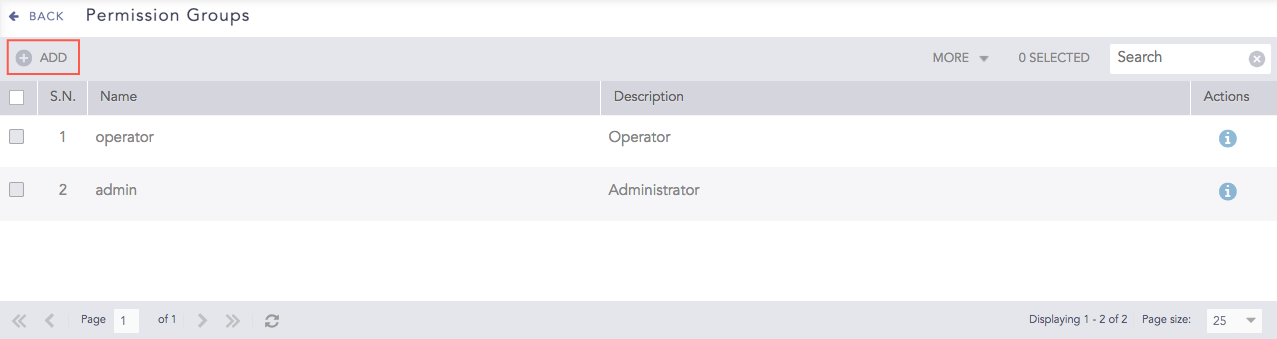
Permission Groups
Click Add.
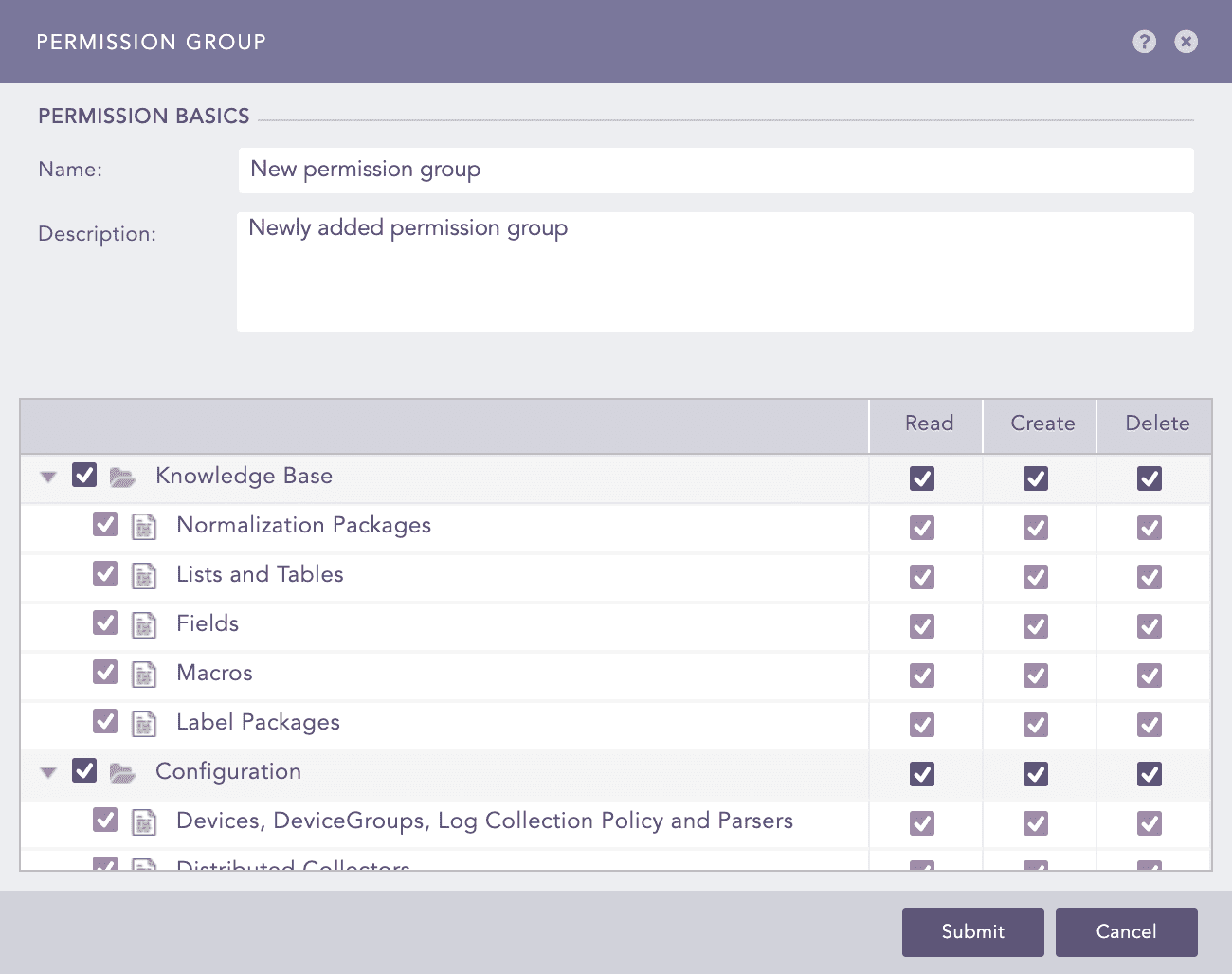
Adding a Permission Group
Enter a Name and a Description.
Select the Read, Create, and Delete permissions you want to grant under Knowledge Base, Configuration, SOAR Playbooks, SOAR Settings and SOAR Cases.
Click Submit.
You can assign the newly created permission group to any User Groups.
Note
If you need help, click ? icon near the top-right corner.
Go to Settings >> User Accounts from the navigation bar and click Permission Groups.
Click the permission group you want to edit.
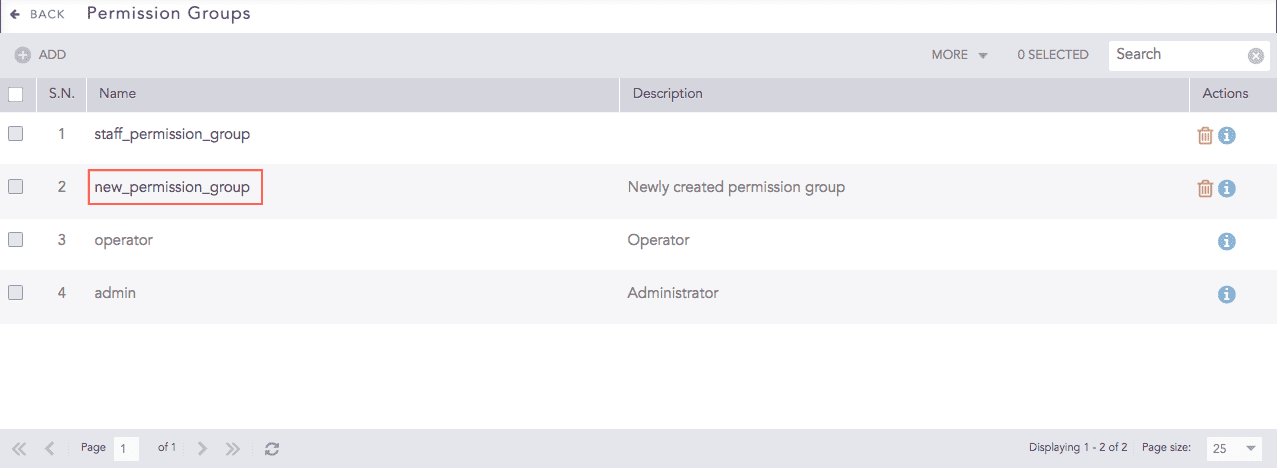
Permission Groups
Apply your changes.
Click Submit.
Before deleting a permission group, make sure it is not in use.
Go to Settings >> User Accounts from the navigation bar and click Permission Groups.
Click the Delete icon from the Actions column.
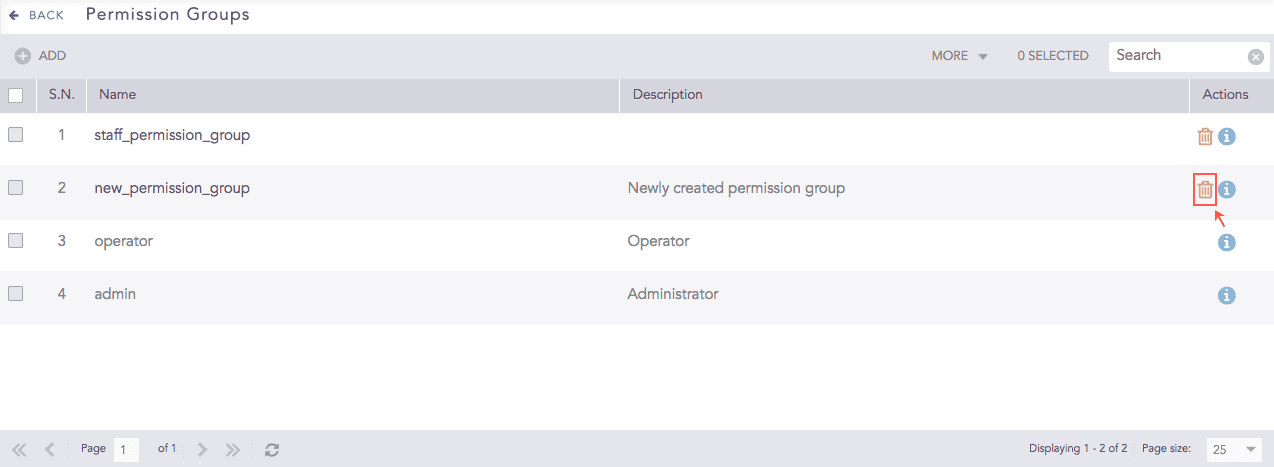
Deleting a Permission Group
To delete multiple permission groups, select the permission groups, click the More drop-down, and select Delete Selected.
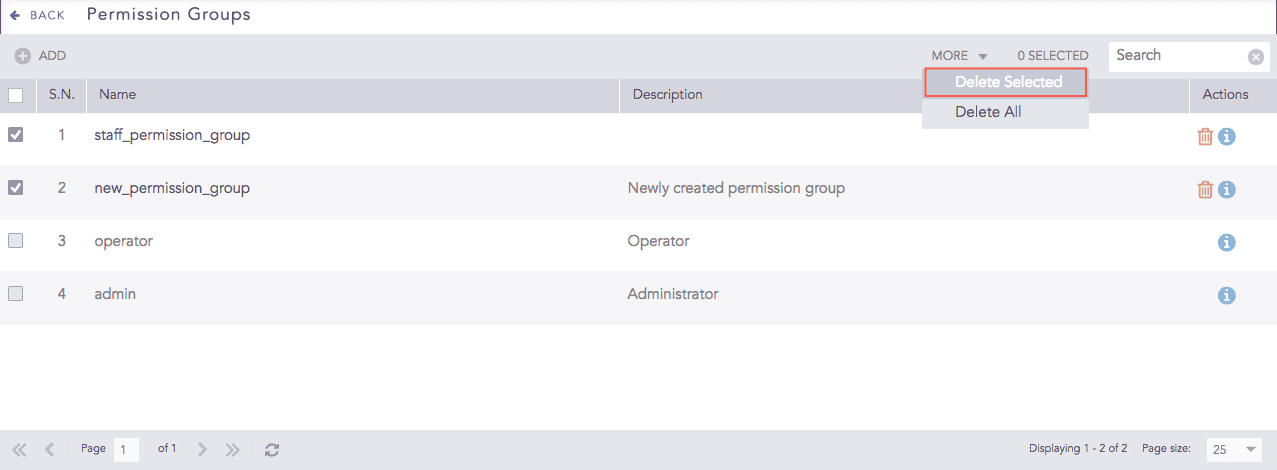
Deleting Selected Permission Groups
To delete all the permission groups, click the More drop-down and select Delete All.
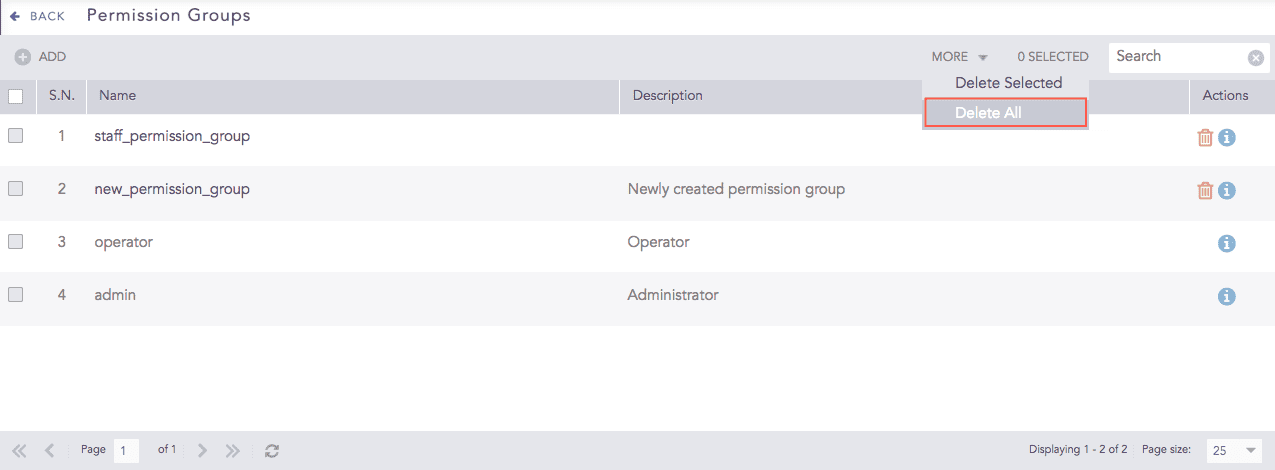
Deleting All Permission Groups
Click Yes.